


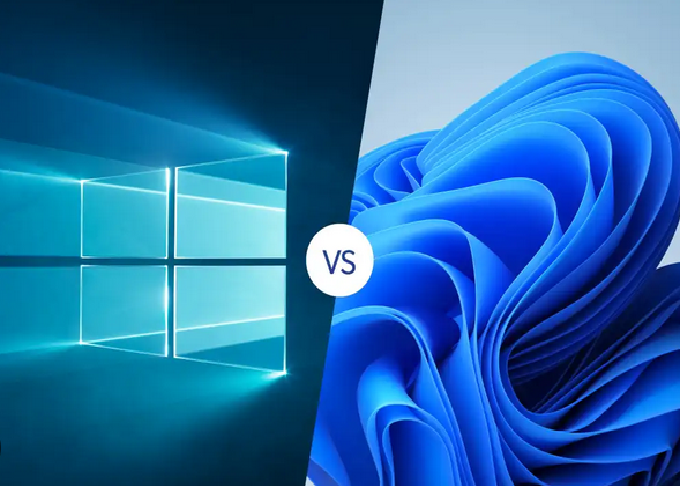
Windows 10 and Windows 11 have shared the desktop stage for several years, and by 2025 the choice between them isn’t just about looks — it’s about security, performance, and long-term usability. This detailed guide will help you decide which version of Windows is right for you in 2025, depending on your device, needs, and workflow.
Quick Headline Verdict
If you want the most secure, future-proof system and your PC meets the hardware requirements, Windows 11 is the better choice. However, if your system is older or runs software that doesn’t play well with newer updates, you can stay on Windows 10 — but you should understand that it’s now past its official support period.
The Current Situation in 2025
The most important factor to consider is support. Microsoft officially ended support for Windows 10 on October 14, 2025. This means no more regular security updates, no new features, and no bug fixes for most users. Without updates, Windows 10 becomes vulnerable to security risks over time.
Windows 11, on the other hand, continues to receive updates and improvements. It’s now the main focus of Microsoft’s development and optimization efforts. By 2025, the majority of new PCs come preloaded with Windows 11, and many businesses and individuals have transitioned to it.
If you are still using Windows 10, you can keep using it for a while, but doing so without security updates will eventually expose your system to potential threats.
Security and Updates — Why It Matters
Security is the biggest difference between the two operating systems in 2025. With Windows 10 no longer receiving regular updates, it becomes more vulnerable to new malware, ransomware, and other cyber threats.
In contrast, Windows 11 is actively maintained. It benefits from Microsoft’s latest security features, including better hardware-based protection, improved encryption, secure boot, and integration with TPM 2.0 (Trusted Platform Module). These improvements make Windows 11 far safer against modern attacks.
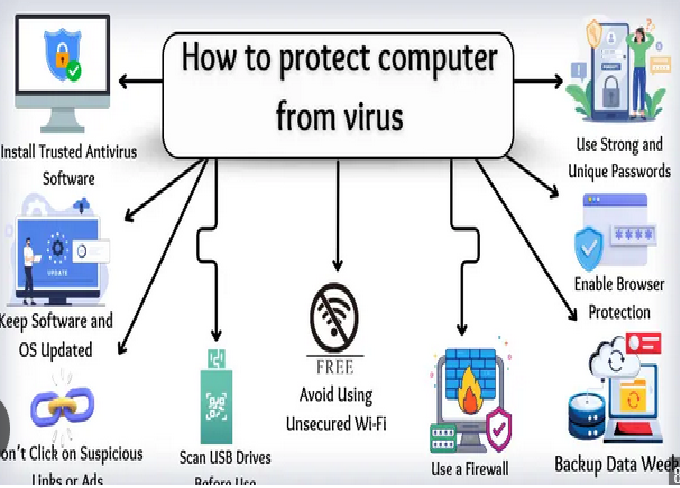
If you continue using Windows 10, you must rely on third-party security software and minimize internet usage. However, this is only a short-term solution. The longer you stay on an unsupported OS, the higher your risk becomes.
Hardware Requirements — The Big Difference
When Windows 11 launched, many users were surprised by its higher hardware requirements. Unlike Windows 10, which runs on almost any PC from the past decade, Windows 11 requires:
-
A 64-bit processor with at least 2 cores and 1 GHz speed
-
4 GB of RAM (minimum)
-
64 GB of storage
-
UEFI firmware with Secure Boot
-
TPM 2.0 support
-
A DirectX 12 compatible GPU
These requirements ensure better performance and stronger security, but they also mean some older PCs can’t upgrade without hardware modifications.
If your PC was made after 2020, it likely meets these specs. Older systems — especially pre-2018 desktops or laptops — might not. You can check compatibility through the PC Health Check tool or manually in BIOS/UEFI settings.
Design and User Interface
Windows 11 introduces a modern and streamlined design. The Start Menu is centered, the taskbar icons are cleaner, and the entire interface has rounded corners and softer visuals. It’s built to feel more minimal and focused, similar to macOS or ChromeOS aesthetics.
Windows 10, on the other hand, sticks to the classic Windows look. Many users prefer its practicality and familiarity, especially those who have used Windows for years.
Here’s a breakdown:
-
Windows 11 Pros: Modern interface, better window snapping (Snap Layouts), improved multitasking, and a clean design.
-
Windows 10 Pros: Familiar design, customizable Start Menu, and more control over taskbar layout.
If you value visual appeal and modern UX, go for Windows 11. If you prefer stability and a familiar interface, Windows 10 still feels “homey.”
Performance and Speed
When it comes to raw performance, Windows 11 is slightly faster on newer hardware. Its resource management is better optimized for modern CPUs and SSDs, meaning smoother multitasking and faster resume times. It’s also more efficient at handling background processes, which can improve battery life on laptops.
For gaming, Windows 11 supports DirectStorage and Auto HDR, allowing games to load faster and look better on supported hardware. However, these improvements are noticeable mainly on newer systems with NVMe SSDs and modern GPUs.
On older machines, performance differences between Windows 10 and 11 are minimal. In some rare cases, Windows 10 can even feel faster due to fewer animations and background services.
Compatibility with Apps and Drivers
One of Windows 10’s biggest advantages is compatibility. Because it’s been around longer, almost every piece of hardware and software works seamlessly with it.
Windows 11 maintains strong compatibility, but some very old applications, legacy peripherals, or enterprise tools may need updates or workarounds. For example, older printers, scanners, or software that depend on outdated drivers may not function properly on Windows 11.
If your workflow depends on older or custom-built software, test it before upgrading. For general users, nearly all modern applications — browsers, office suites, creative tools, and games — work perfectly fine on Windows 11.
Upgrading and Installation Options
Microsoft offered free upgrades from Windows 10 to Windows 11 for eligible PCs, and as of 2025, many users can still do so through Windows Update. If your device is supported, the upgrade process is simple:
-
Backup your data.
-
Check compatibility with the PC Health Check tool.
-
Enable TPM and Secure Boot in BIOS (if disabled).
-
Run the Windows 11 setup through Windows Update or installation media.
If your PC is not compatible, you can still install Windows 11 through unofficial methods — but it’s not recommended, since updates might not work correctly and performance could be unstable. In most cases, it’s better to either stay on Windows 10 temporarily or buy a new PC that supports Windows 11.
Privacy and Microsoft Account Integration
Windows 11 relies more heavily on cloud and Microsoft account integration. During setup, it encourages you to sign in with a Microsoft account to sync settings, OneDrive files, and apps. This can be convenient if you use multiple Windows devices.
However, some users prefer local accounts for privacy reasons. While still possible, the option is less obvious during setup. Windows 10 remains more flexible in this area, allowing full installation and use without requiring cloud sign-in.
If you value privacy and prefer offline use, both systems can be configured to minimize data sharing — but Windows 11 requires more manual setup for this.
Gaming Experience
Windows 11 is more future-ready for gamers. With built-in support for DirectX 12 Ultimate, Auto HDR, and DirectStorage, it enables faster load times and richer visuals for modern titles. Xbox Game Pass integration is also improved, making gaming more seamless.
That said, Windows 10 is still an excellent gaming platform. Most games run identically across both systems, and performance differences are minimal unless you’re using cutting-edge hardware.
For casual gamers, either OS is fine. For those using high-end GPUs, SSDs, and the latest titles, Windows 11 provides a slightly better edge and long-term compatibility.
Productivity and Multitasking Features
Windows 11 introduced several new productivity tools:
-
Snap Layouts: Quickly organize multiple windows on your screen.
-
Virtual Desktops: Improved design for separating workspaces.
-
Focus Sessions: Helps reduce distractions while working.
-
Better Touch and Pen Support: Especially useful for hybrid and touchscreen devices.
Windows 10 still handles multitasking well but lacks these polished features. Its virtual desktop management and snapping tools are more basic in comparison.
If you frequently multitask, use dual monitors, or work on creative projects, Windows 11 provides a smoother, more organized experience.
Reliability and Stability
Windows 10 has been around for nearly a decade, and it’s extremely stable. Most bugs have been fixed, and it rarely surprises users with unexpected issues. It’s ideal for users who prefer reliability over constant updates.
Windows 11, while much more stable now than at launch, still receives new features regularly. Occasionally, new updates can introduce small bugs — though these are usually fixed quickly. Overall, it’s mature enough for everyday use in 2025.
Business and Enterprise Use
For companies and professionals, the decision often comes down to software and hardware compatibility. Many businesses are already transitioning to Windows 11 because of better security, future support, and integration with Microsoft 365 and Azure Active Directory.
However, some organizations with specialized software are choosing to stay on Windows 10 temporarily, using Microsoft’s Extended Security Updates (ESU) program for continued protection. For long-term sustainability, though, businesses should plan migration to Windows 11 as soon as possible.
Who Should Use Which in 2025
Here’s a summary based on user type:
1. New PC Buyers:
Go with Windows 11. It’s modern, supported, and optimized for new hardware.
2. Everyday Users with Compatible PCs:
Upgrade to Windows 11 for better performance and features.
3. Users with Older or Unsupported PCs:
Stay on Windows 10 temporarily but plan to move soon. Avoid sensitive online tasks.
4. Businesses with Legacy Apps:
Use Windows 10 with extended support or virtual machines until your apps are ready for Windows 11.
5. Gamers:
Use Windows 11 if your system supports it for best graphics and load times.
Upgrade Preparation Checklist
Before upgrading, make sure you:
-
Backup your data using external drives or cloud storage.
-
Check hardware compatibility.
-
Update BIOS and drivers.
-
Enable TPM and Secure Boot.
-
Test essential apps to confirm they work properly.
-
Create recovery media in case you need to roll back.
Final Thoughts — Which Is Right for You?
By the end of 2025, the answer is becoming clearer. Windows 11 is the better long-term choice for most users. It’s more secure, more modern, and fully supported for years to come. It integrates new technologies like AI-driven features, gaming enhancements, and improved multitasking tools.
Windows 10, while still capable, is now aging out. Without security updates, it poses increasing risks over time. If you stay with Windows 10, do so only as a short-term solution — and make a plan to migrate soon.
Final Recommendation Summary
-
Choose Windows 11 if your hardware supports it and you want future updates, security, and performance.
-
Stay on Windows 10 temporarily only if your device or software cannot handle Windows 11 yet.
-
Plan an upgrade or replacement before 2026 to avoid security risks and compatibility problems.