

In today’s hyperconnected world, having a strong and secure Wi-Fi network is just as essential as locking your doors at night. The number of cyberattacks targeting home and office networks has increased significantly in recent years. As technology advances in 2025, hackers are also becoming more sophisticated, using advanced tools and artificial intelligence (AI) to exploit vulnerabilities. Whether you’re an average user or a business owner, understanding how to secure your Wi-Fi network can protect your personal data, financial information, and privacy.
This article will provide a detailed, step-by-step guide on how to secure your Wi-Fi network from hackers in 2025, explaining the best practices, tools, and security settings you can use.
1. Understanding Why Wi-Fi Security Is Important
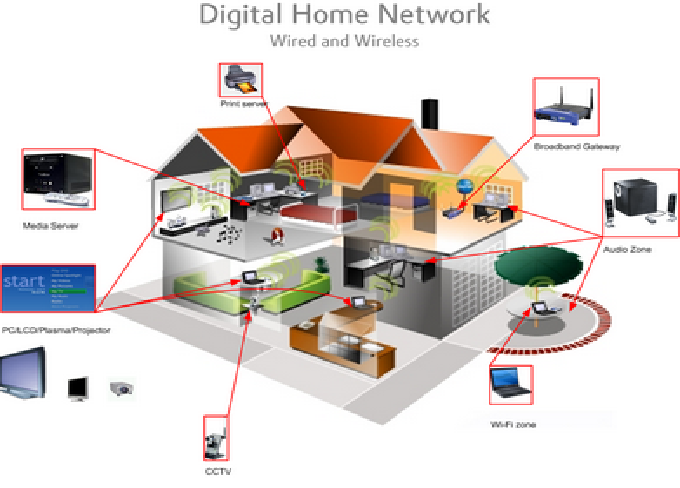
A Wi-Fi network is a gateway to all your connected devices — computers, smartphones, smart TVs, security cameras, and even IoT appliances. If your Wi-Fi is compromised, hackers can access your personal files, intercept communications, steal passwords, or even use your network for illegal activities.
Wi-Fi hacking is no longer a rare event. Tools such as packet sniffers, brute-force password crackers, and social engineering attacks make it possible for even low-skilled attackers to infiltrate weak networks. That’s why Wi-Fi protection is crucial in 2025, when remote work, smart homes, and cloud-based systems dominate our lives.
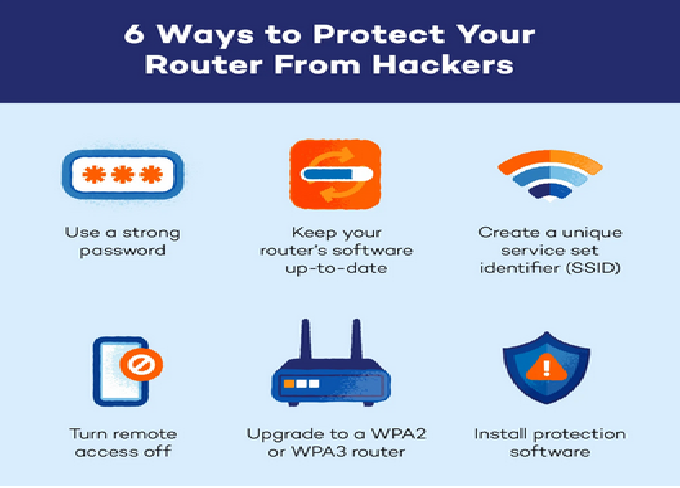
2. Use the Latest Wi-Fi Encryption Standard (WPA3)
The first and most important step to securing your network is using strong encryption. Older standards like WEP and WPA2 are now outdated and vulnerable.
-
WPA3 (Wi-Fi Protected Access 3) is the latest encryption protocol and is designed to prevent common attacks like dictionary and brute-force attempts.
-
It uses stronger 192-bit encryption and individualized data encryption, which means even if someone captures your Wi-Fi traffic, they can’t easily decrypt it.
-
WPA3 also provides forward secrecy, ensuring that even if your password is leaked later, previous sessions remain secure.
How to Enable WPA3:
-
Log in to your router’s admin panel (usually by typing 192.168.1.1 or 192.168.0.1 in your browser).
-
Go to Wireless Settings > Security Options.
-
Select WPA3-Personal or WPA3-SAE (Simultaneous Authentication of Equals).
-
Save the settings and reconnect your devices.
If your router doesn’t support WPA3, consider upgrading to a modern router.
3. Change Default Router Username and Password
Routers come with default login credentials like “admin” or “password,” which are public and easily found online. Hackers can use these defaults to access your router settings and take over your entire network.
What to Do:
-
Immediately change the router admin username and password to something unique and complex.
-
Use a strong password with at least 12 characters, including uppercase and lowercase letters, numbers, and symbols.
-
Avoid using personal information like your name, birthday, or phone number.
A good example: R0uter#SecuRe!2025
4. Update Your Router Firmware Regularly
Routers, like any device, have software that can contain vulnerabilities. Manufacturers release firmware updates to patch security flaws. However, most users forget to update, leaving their routers exposed.
Steps to Update:
-
Log in to your router’s control panel.
-
Look for a section labeled Firmware Update or System Upgrade.
-
Check for the latest version and update it manually, or enable automatic updates if available.
Keeping your router’s firmware updated ensures that it has the latest security patches and performance improvements.
5. Use a Strong and Unique Wi-Fi Password
Your Wi-Fi password (SSID password) is your first line of defense. Weak or easily guessable passwords make it simple for hackers to gain access.
Tips for a Strong Wi-Fi Password:
-
Make it at least 16 characters long.
-
Use a mix of uppercase, lowercase, numbers, and special characters.
-
Avoid using dictionary words or predictable patterns (like “password123” or “admin2025”).
-
Use a password manager to generate and store your Wi-Fi credentials safely.
Example: 5fYt$N!29Lm#q@Wv
6. Disable WPS (Wi-Fi Protected Setup)
WPS is a feature designed to make connecting new devices easier. However, it’s also one of the biggest vulnerabilities in many routers. Hackers can exploit the WPS PIN system using brute-force attacks to gain unauthorized access.
To Disable WPS:
-
Open your router’s settings page.
-
Navigate to Advanced Settings > WPS Settings.
-
Turn off WPS completely.
Once disabled, only users with the actual Wi-Fi password can connect.
7. Hide Your Network SSID
Your SSID (Service Set Identifier) is your Wi-Fi network’s name. By default, it’s visible to anyone nearby. Hiding your SSID won’t make your network completely invisible, but it adds another layer of difficulty for attackers.
To Hide SSID:
-
Log in to your router.
-
Go to Wireless Settings > Basic Settings.
-
Uncheck Broadcast SSID or select Hide SSID.
Only users who know your network name will be able to connect manually.
8. Enable Network Firewalls
A firewall is an essential barrier that filters incoming and outgoing traffic on your network. Many routers have built-in firewalls, but users often disable them for convenience.
Benefits of Enabling Firewalls:
-
Blocks suspicious connections.
-
Prevents unauthorized data access.
-
Adds a protective layer against malware and intrusion attempts.
Make sure the router firewall is enabled, and if possible, use software firewalls on all connected devices for maximum protection.
9. Use a Guest Network for Visitors and Smart Devices
Many routers allow you to create a guest Wi-Fi network. This separate network isolates guests and IoT devices from your main network, reducing the risk of infection or hacking.
Why Use a Guest Network:
-
Protects your main devices (computers, phones) from compromised guest devices.
-
Keeps smart home gadgets like cameras or smart bulbs in a secure, isolated zone.
How to Set It Up:
-
Access your router settings.
-
Look for Guest Network or Guest SSID.
-
Enable it with a unique name and strong password.
-
Disable “Allow guests to access local network” if available.
10. Enable MAC Address Filtering
Each device that connects to your network has a unique MAC (Media Access Control) address. By enabling MAC address filtering, you can restrict which devices can join your Wi-Fi.
Steps:
-
Open your router settings.
-
Go to Advanced Settings > MAC Filtering.
-
Add the MAC addresses of your approved devices.
-
Enable the filter to block unlisted devices.
While not foolproof (advanced hackers can spoof MAC addresses), it still adds an extra security layer.
11. Disable Remote Management
Many routers offer remote management features that allow users to change settings from outside their home. However, this feature can be exploited by attackers to gain full access.
Disable it by:
-
Going to Administration > Remote Management.
-
Unchecking “Enable Remote Access.”
Keep management access limited to devices connected to your local network.
12. Use a VPN (Virtual Private Network)
A VPN encrypts all traffic from your devices to the internet, even if someone intercepts your Wi-Fi data. It’s especially useful if you connect to public Wi-Fi or want to prevent your ISP from tracking your activity.
Benefits of a VPN:
-
Protects your browsing data from hackers.
-
Masks your IP address and location.
-
Prevents data leaks on unsecured connections.
Choose a reliable VPN provider that offers strong encryption, a no-logs policy, and fast servers.
13. Secure All Connected Devices
Your Wi-Fi security is only as strong as the weakest device connected to it. Smart home devices, in particular, can be easily compromised.
Best Practices:
-
Change default usernames and passwords for all smart devices.
-
Keep firmware updated regularly.
-
Disable unnecessary features like remote access.
-
Only buy IoT products from reputable brands with security support.
14. Use Network Monitoring Tools
Network monitoring tools help you identify unknown or suspicious devices connected to your Wi-Fi. They allow you to take action before damage occurs.
Popular Tools in 2025:
-
Fing – Shows connected devices and alerts for new ones.
-
GlassWire – Tracks bandwidth usage and potential threats.
-
Wireshark – For advanced users who want to analyze network traffic in detail.
Regularly monitor your network to ensure only authorized devices are connected.
15. Reduce Wi-Fi Range
If your Wi-Fi signal extends too far beyond your home, it becomes easier for outsiders to attempt hacking.
How to Limit Range:
-
Place the router near the center of your home.
-
Reduce the transmit power in the router’s wireless settings.
-
Use directional antennas instead of omnidirectional ones.
This minimizes exposure to external threats.
16. Implement Network Segmentation for Businesses
If you’re managing a business network, network segmentation is crucial. It divides your network into multiple smaller networks, reducing the risk of a full-scale breach.
Example:
-
One segment for employees.
-
Another for guest Wi-Fi.
-
A separate VLAN for servers or sensitive data.
This ensures that even if one section is compromised, the rest remains secure.
17. Enable DNS Security and Parental Controls
Modern routers in 2025 often include DNS filtering and parental controls that block malicious websites automatically.
Benefits:
-
Prevents access to phishing or malware sites.
-
Adds protection for children and employees.
-
Reduces the risk of accidental infections.
You can also use third-party DNS services like Quad9 or OpenDNS, which automatically block dangerous domains.
18. Use Two-Factor Authentication (2FA) for Router Access
Many new routers in 2025 support 2FA for admin logins. With 2FA, even if someone steals your password, they can’t access the router without the secondary verification code.
Check if your router supports 2FA in the admin panel or through the manufacturer’s mobile app.
19. Backup Router Configuration
After setting up all these security measures, it’s wise to back up your router configuration. If you ever reset or replace your router, you can easily restore secure settings without starting from scratch.
Steps:
-
Log in to the router.
-
Find the Backup/Restore section.
-
Click “Backup” and save the file securely.
20. Stay Educated About New Threats
Cybersecurity is constantly evolving. New attack methods appear every year, and staying informed is your best defense.
How to Stay Updated:
-
Follow reputable tech and cybersecurity websites.
-
Subscribe to your router manufacturer’s newsletter for security updates.
-
Learn about the latest Wi-Fi vulnerabilities and patches.
The more aware you are, the better you can protect your network.
Conclusion
In 2025, securing your Wi-Fi network is not a one-time task—it’s an ongoing process. Hackers are smarter, tools are more powerful, and our dependency on wireless technology has never been greater.
By using WPA3 encryption, setting strong passwords, keeping firmware updated, and employing advanced security features like firewalls, VPNs, and 2FA, you can dramatically reduce your network’s vulnerability.
Remember: your Wi-Fi isn’t just for browsing—it connects your personal life, finances, and private data. A few smart steps today can prevent serious problems tomorrow.