


Windows is a powerful and versatile operating system, but it’s not immune to errors. From startup issues and blue screens to missing DLL files or sluggish performance, many users encounter frustrating problems that disrupt productivity. Often, people assume the only solution is to reinstall Windows—a time-consuming process that can lead to data loss and hours of reconfiguration.
The good news? Most Windows errors can be fixed without reinstalling your operating system. In this comprehensive guide, we’ll explore how to troubleshoot and resolve the most common Windows errors step-by-step using built-in tools and smart fixes.
1. Understanding Common Windows Errors
Before jumping into solutions, it’s important to understand the types of errors that typically occur on Windows systems. Here are some of the most frequent issues users face:
-
Blue Screen of Death (BSOD) – Caused by critical system crashes or driver conflicts.
-
Missing or Corrupted System Files – Often the result of improper shutdowns or malware.
-
Application Crashes and Freezes – Can be triggered by outdated drivers or incompatible software.
-
Slow Startup or Performance – Usually due to unnecessary background programs, fragmented files, or hardware issues.
-
Windows Update Failures – Occur when updates fail to install properly or get stuck.
-
Network Connectivity Issues – Problems connecting to Wi-Fi or accessing the internet.
-
Disk Errors or Corrupted Drives – Bad sectors or misconfigured storage can slow down or crash your PC.
Once you identify the nature of your problem, you can apply the right fix without needing to reinstall Windows.
2. Use System File Checker (SFC) to Repair Corrupted Files
Corrupted or missing system files are among the top reasons for Windows instability. Luckily, Microsoft provides a built-in command-line tool called System File Checker (SFC) that can automatically repair these issues.
Steps to Run SFC:
-
Open the Start Menu, type Command Prompt, and right-click it.
-
Select Run as administrator.
-
Type the following command and press Enter:
-
Wait while the tool scans and repairs any corrupted files.
-
Once the process completes, restart your computer.
SFC replaces damaged files with healthy versions from the Windows cache, often fixing startup crashes, blue screens, and random reboots.
3. Repair Windows Image with DISM
If the SFC tool doesn’t solve your issue, the problem may lie deeper in the Windows image itself. The Deployment Imaging Service and Management Tool (DISM) helps repair the Windows image used by SFC.
To use DISM:
-
Open Command Prompt (Admin) again.
-
Type the following commands one by one:
-
Once complete, reboot your PC and rerun the sfc /scannow command.
This process ensures your system files and image are clean, stable, and working properly—often eliminating recurring errors without a full reinstall.
4. Fix Boot Issues with Startup Repair
If your computer fails to start properly or enters a boot loop, you can use Startup Repair, a built-in Windows recovery tool designed to fix boot configuration issues.
How to Access Startup Repair:
-
Restart your PC and press F11 or Shift + F8 repeatedly during boot (depending on your device).
-
Go to Advanced options → Troubleshoot → Advanced options → Startup Repair.
-
Choose your operating system and let Windows diagnose and repair the problem.
Startup Repair automatically detects missing boot files, damaged system configurations, and startup conflicts—restoring your PC’s ability to boot normally.
5. Use System Restore to Roll Back Changes
Sometimes, a new driver, software update, or setting change causes Windows errors. The easiest fix is to roll your system back to an earlier state using System Restore.
To use System Restore:
-
Open the Control Panel and select System and Security → System.
-
Click System Protection → System Restore.
-
Choose a restore point from before the problem occurred.
-
Follow the prompts to complete the process and restart your PC.
System Restore doesn’t delete your files but reverts drivers, registry settings, and system configurations to a previous working version—often resolving software-related issues instantly.
6. Check for Disk Errors Using CHKDSK
Disk errors can cause slow performance, data loss, or even blue screens. The CHKDSK (Check Disk) tool scans your drives for errors and repairs them automatically.
Steps to Run CHKDSK:
-
Open Command Prompt (Admin).
-
Type this command and press Enter:
(Replace C: with your drive letter if necessary.)
-
If prompted to schedule the check at next restart, type Y and press Enter.
-
Restart your PC.
CHKDSK scans the disk for bad sectors, file system errors, and physical damage, repairing or isolating problematic sections.
7. Resolve Driver Issues
Outdated or corrupted drivers can trigger a variety of errors, including BSODs, hardware malfunctions, and lag. Keeping drivers updated ensures hardware and Windows communicate properly.
To fix driver issues:
-
Open Device Manager (press Win + X → Device Manager).
-
Look for yellow exclamation marks indicating problematic drivers.
-
Right-click the device → Update driver → Search automatically for drivers.
-
Alternatively, download drivers directly from your device manufacturer’s website.
If a new driver causes instability, you can roll back to a previous version:
-
Right-click the device → Properties → Driver → Roll Back Driver.
8. Clear Temporary Files and Cache
Temporary files, logs, and cached data can build up over time, leading to sluggish performance or unexpected errors. Cleaning them regularly helps Windows run smoothly.
Use Disk Cleanup:
-
Press Win + S, type Disk Cleanup, and open it.
-
Select the drive (usually C:) and let Windows analyze it.
-
Check items like Temporary files, System error memory dumps, and Recycle Bin.
-
Click OK → Delete Files.
You can also use the Storage Sense feature in Settings → System → Storage to automatically delete old files and free up space.
9. Fix Windows Update Errors
Windows Update issues are extremely common. If updates fail or get stuck, you can fix them without reinstalling Windows.
Method 1: Run Windows Update Troubleshooter
-
Go to Settings → System → Troubleshoot → Other troubleshooters.
-
Find Windows Update and click Run.
-
Follow on-screen instructions to detect and fix problems automatically.
Method 2: Reset Windows Update Components Manually
-
Open Command Prompt (Admin).
-
Type these commands one by one and press Enter after each:
-
Restart your PC and check for updates again.
10. Repair the Windows Registry
The Windows Registry holds crucial system settings and configurations. If it becomes corrupted, you might experience errors, app crashes, or system instability.
Caution: Editing the registry manually is risky, but Windows provides safe tools to clean and repair it.
Option 1: Use System Restore – This reverts registry settings to an earlier state (as described earlier).
Option 2: Use SFC and DISM – These tools often fix registry corruption automatically.
Option 3: Use Safe Mode – Boot into Safe Mode, uninstall recently added software, and reboot.
Avoid third-party registry cleaners unless absolutely necessary—they can sometimes cause more harm than good.
11. Scan for Malware and Viruses
Malware infections can mimic or cause Windows errors, corrupt files, and slow performance. Always ensure your system is clean before attempting deeper fixes.
Steps:
-
Open Windows Security → Virus & threat protection.
-
Click Quick scan or Full scan for a thorough check.
-
If threats are detected, remove them and restart your PC.
For stubborn malware, run a Windows Defender Offline Scan—this scans before Windows boots and eliminates hidden threats.
12. Check for Hardware Problems
If you’ve ruled out software issues, hardware might be the cause. Faulty RAM, storage devices, or peripherals can cause unpredictable errors.
To test RAM:
-
Press Win + R, type
mdsched.exe, and press Enter. -
Choose Restart now and check for problems.
-
Windows Memory Diagnostic will run and report any issues.
To check hard drive health:
Use the command:
If it shows “OK,” your drive is healthy; otherwise, consider backing up and replacing it.
13. Perform a Clean Boot
A clean boot helps you identify if a startup program or service is causing errors.
Steps:
-
Press Win + R, type
msconfig, and hit Enter. -
Go to the Services tab → check Hide all Microsoft services → click Disable all.
-
Go to the Startup tab → open Task Manager → disable all startup items.
-
Restart your PC.
If the problem disappears, re-enable services one by one to identify the culprit.
14. Use Advanced Troubleshooters
Windows 10 and 11 include several built-in troubleshooters for specific issues:
-
Network Adapter Troubleshooter – Fixes Wi-Fi and Ethernet issues.
-
Audio Troubleshooter – Repairs sound problems.
-
Printer Troubleshooter – Solves printer connectivity errors.
-
Performance Troubleshooter – Identifies causes of slow performance.
Access them in Settings → System → Troubleshoot → Other troubleshooters.
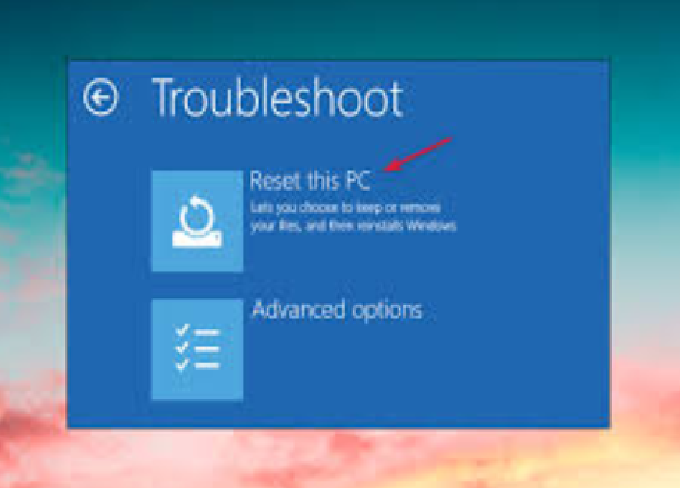
15. Restore Windows Without Reinstalling (Reset This PC Option)
If all else fails and your system remains unstable, you can perform a Reset without losing personal data. This feature reinstalls Windows system files while keeping your files intact.
To reset Windows:
-
Go to Settings → System → Recovery.
-
Click Reset this PC → Keep my files.
-
Follow the prompts to complete the process.
This restores Windows to its default state while retaining your documents, images, and personal settings.
16. Keep Windows Healthy: Preventing Future Errors
Once your system is stable, it’s important to maintain it properly to avoid future errors.
Tips to Prevent Problems:
-
Keep Windows and drivers updated.
-
Regularly back up your data.
-
Avoid installing unnecessary software.
-
Run antivirus scans weekly.
-
Clean temporary files and cache periodically.
-
Create restore points before major updates or software installations.
-
Monitor disk health and performance regularly.
Preventive care is the best way to avoid repeated issues and keep your system running efficiently.
Conclusion
Reinstalling Windows should always be the last resort. The operating system provides numerous built-in tools and commands designed to repair most issues without a complete reinstallation. From running SFC and DISM to performing system restores, cleaning temporary files, and resetting without losing data—there’s almost always a fix available.