


Keeping your Windows computer safe from viruses and malware is one of the most important aspects of maintaining performance, privacy, and security. In today’s digital age, malware threats are more sophisticated than ever. Cybercriminals use phishing emails, malicious downloads, fake software updates, and even infected USB drives to attack your system. Fortunately, Windows offers several built-in and third-party tools to protect your PC. In this detailed guide, we’ll explore the best ways to protect your Windows from viruses and malware—covering everything from antivirus software to safe browsing habits.
1. Understand What Viruses and Malware Are
Before diving into the protection methods, it’s essential to understand what you’re protecting your system from.
-
Virus: A type of malicious program that attaches itself to clean files and spreads to other files. It can corrupt or delete your data and slow down your computer.
-
Malware: A broad term that includes viruses, worms, trojans, spyware, ransomware, and adware. Its goal is to steal data, damage systems, or spy on users.
-
Ransomware: Locks your files and demands payment to restore access.
-
Spyware: Monitors your activity and sends data to third parties.
-
Trojan Horse: Disguised as legitimate software but provides unauthorized access to hackers.
Understanding these threats is the first step toward building a strong defense system for your Windows PC.
2. Keep Windows and Software Up to Date
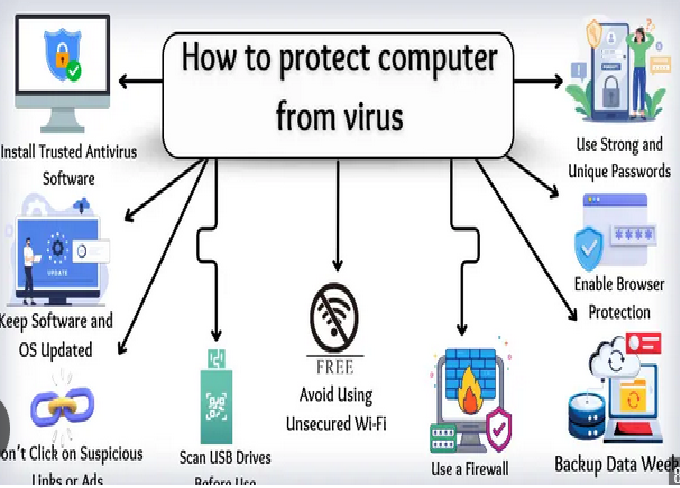
One of the easiest yet most powerful ways to protect your system is by keeping it updated. Microsoft regularly releases security patches to fix vulnerabilities that malware can exploit.
-
Enable automatic updates:
Go to Settings > Windows Update > Advanced options and make sure updates are set to install automatically. -
Update third-party software:
Outdated browsers, PDF readers, and plugins like Java or Flash (if still installed) can become attack vectors.
Regular updates ensure that hackers cannot exploit known vulnerabilities in your system or applications.
3. Use Built-in Windows Security Tools
Windows 10 and 11 come with Windows Security (Defender Antivirus)—a powerful, free tool that provides real-time protection.
Windows Security Features
-
Real-time Protection: Detects and blocks threats as they occur.
-
Firewall and Network Protection: Monitors network traffic and prevents unauthorized access.
-
Account Protection: Helps secure your Microsoft account and sign-in options.
-
App & Browser Control: Protects against malicious websites and downloads via Microsoft Defender SmartScreen.
-
Device Security: Ensures that your hardware and firmware are tamper-free.
To access these tools, go to Settings > Privacy & Security > Windows Security. Make sure all protection settings are turned on.
4. Install a Reliable Third-Party Antivirus
While Windows Defender is highly effective, adding a trusted third-party antivirus can provide additional layers of defense, such as advanced ransomware protection, email scanning, and secure web browsing.
Recommended Antivirus Software
-
Bitdefender Antivirus Plus – Excellent malware detection with minimal system impact.
-
Kaspersky Standard – Strong protection against trojans and ransomware.
-
Norton 360 – Includes VPN, password manager, and identity theft protection.
-
Avast or AVG Free – Good free options with real-time scanning and browser protection.
Ensure your antivirus updates daily and runs automatic scans. Avoid using multiple antivirus programs simultaneously, as they can conflict and reduce protection efficiency.
5. Enable the Windows Firewall
Your firewall acts as a barrier between your computer and the internet, blocking unauthorized access while allowing safe connections.
To verify that the Windows Firewall is active:
-
Go to Control Panel > System and Security > Windows Defender Firewall.
-
Ensure that the firewall is turned on for both private and public networks.
If you’re using a third-party security suite, it may include its own firewall—make sure it’s properly configured and not disabling Windows’ built-in protection.
6. Be Cautious with Email Attachments and Links
One of the most common ways malware spreads is through phishing emails. These messages often pretend to come from legitimate companies and trick users into clicking on malicious links or opening infected attachments.
Tips to Stay Safe
-
Don’t open attachments from unknown senders.
-
Hover over links before clicking to see where they lead.
-
Be skeptical of urgent or threatening messages (e.g., “Your account will be suspended”).
-
Use spam filters in your email client.
Many phishing attempts can be spotted with careful attention—always verify before you click.
7. Download Software Only from Trusted Sources
Never download programs from unverified websites. Malware is often disguised as cracked software, “free” utilities, or browser extensions.
Safe Download Practices
-
Use official websites or the Microsoft Store.
-
Avoid pirated software—it’s one of the biggest malware carriers.
-
Check reviews and ratings before installing any application.
-
Verify digital signatures or hashes if available.
If you must use open-source or freeware tools, make sure they’re from reputable developers and communities.
8. Use Strong and Unique Passwords
Weak or reused passwords can make it easy for attackers to access your accounts and systems. Use strong, unique passwords for all your logins.
Tips for Strong Passwords
-
Combine uppercase, lowercase, numbers, and symbols.
-
Avoid personal details like birthdays or names.
-
Use at least 12–16 characters.
-
Change passwords regularly.
You can also use a password manager such as Bitwarden, LastPass, or 1Password to store and generate secure passwords safely.
9. Enable Two-Factor Authentication (2FA)
Two-factor authentication adds another layer of security by requiring a verification code in addition to your password.
-
Enable 2FA for your Microsoft account, email, and other important services.
-
Use authenticator apps like Microsoft Authenticator or Google Authenticator instead of SMS codes for better security.
Even if your password is stolen, 2FA helps prevent unauthorized access to your accounts.
10. Regularly Backup Your Data
Backups are your ultimate defense against ransomware or major system failures. If your files are encrypted or deleted by malware, you can restore them easily.
Backup Options
-
Cloud Storage: OneDrive, Google Drive, or Dropbox automatically sync files.
-
External Drives: Use an external hard drive or SSD for full system backups.
-
System Image: Create a Windows system image to restore your computer to a previous state.
Go to Settings > System > Backup in Windows to configure backup options. Ideally, keep both local and cloud backups for maximum protection.
11. Use a Standard (Non-Administrator) Account
Running your computer with administrator privileges all the time increases risk—malware can gain full control more easily.
Create and use a standard user account for daily activities.
To do this:
-
Open Settings > Accounts > Family & other users.
-
Create a standard account and use it for everyday tasks.
-
Keep your administrator account reserved for installations and system changes.
This small change can drastically reduce malware’s ability to harm your system.
12. Use Browser Security Settings and Extensions
Your web browser is often the first point of contact with malicious sites or scripts. Enhancing browser security can prevent many infections.
Security Measures
-
Enable pop-up blockers.
-
Turn on Safe Browsing or SmartScreen filters.
-
Keep your browser and extensions updated.
-
Use privacy-focused extensions like uBlock Origin or Privacy Badger.
-
Disable or remove unused extensions.
Modern browsers like Microsoft Edge, Chrome, and Firefox already include anti-phishing and anti-malware features—ensure they’re enabled.
13. Scan External Devices Before Opening
USB drives and external hard disks can carry hidden malware that automatically executes when connected.
-
Always scan removable media with your antivirus before opening it.
-
Disable “AutoRun” or “AutoPlay” features in Windows settings to prevent automatic execution of malicious files.
These simple precautions can block many infections that spread through physical devices.
14. Use Virtual Machines for Testing Unknown Software
If you like experimenting with new or unknown programs, a virtual machine (VM) can help you stay safe.
You can use software like VirtualBox or VMware Workstation to create a virtual Windows environment that’s isolated from your main system.
If the test software turns out to be malicious, only the virtual environment is affected—not your real computer.
15. Secure Your Network Connection
Hackers can exploit weak Wi-Fi networks to gain access to your computer. Secure your home or office network using the following tips:
-
Change your router’s default username and password.
-
Use WPA3 or WPA2 encryption.
-
Disable WPS (Wi-Fi Protected Setup).
-
Hide your SSID if possible.
-
Keep your router’s firmware updated.
For extra protection, consider using a VPN (Virtual Private Network) when connecting to public Wi-Fi.
16. Avoid Using Pirated or Cracked Software
Pirated software often comes bundled with hidden malware, trojans, and ransomware. Besides being illegal, it poses a serious threat to your computer’s safety.
Always buy genuine software or use legitimate free alternatives. The small cost of genuine software is nothing compared to the potential loss of data or privacy.
17. Monitor System Performance and Behavior
If your computer suddenly slows down, overheats, or behaves unusually, malware could be the cause.
Common Signs of Infection
-
Unusually high CPU or memory usage.
-
Unknown programs in Task Manager.
-
Browser redirects or pop-up ads.
-
Disabled antivirus or Windows Security.
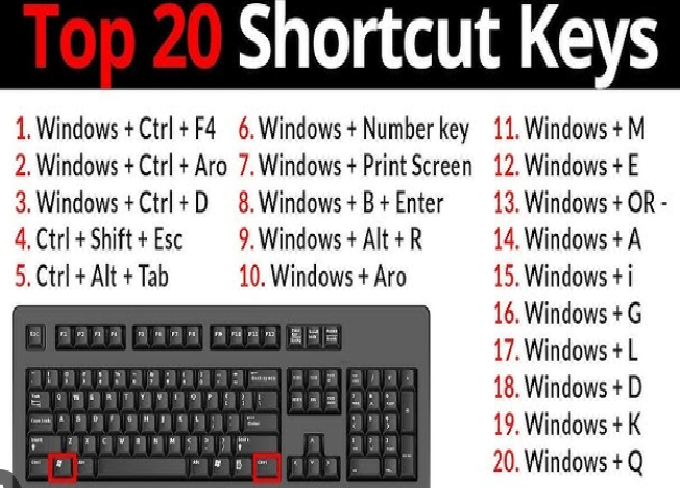
Use Task Manager (Ctrl + Shift + Esc) or Resource Monitor to check suspicious activity. Perform a full system scan if you detect anything unusual.
18. Educate Yourself and Stay Informed
Cyber threats evolve constantly. Keeping yourself informed about new types of malware and scams is as important as having antivirus software.
Follow trusted tech news, cybersecurity blogs, or Microsoft’s security updates to stay aware of emerging threats and recommended practices.
19. Use Encryption for Sensitive Files
Encrypting your sensitive files adds another layer of defense. Even if malware or hackers access your data, they won’t be able to read it.
Windows includes built-in tools like BitLocker (available in Pro and Enterprise editions) and Device Encryption for compatible hardware.
You can also use third-party tools like VeraCrypt for file and folder-level encryption.
20. Schedule Regular System Scans
Even with real-time protection, running full system scans at least once a week helps detect dormant or hidden threats.
To schedule automatic scans in Windows Security:
-
Open Windows Security > Virus & Threat Protection > Scan options.
-
Choose Full scan or Custom scan and schedule it regularly.
This proactive approach ensures continuous protection against evolving threats.
Conclusion
Protecting your Windows PC from viruses and malware doesn’t require expert knowledge—just consistent habits and the right tools. By keeping your system updated, using reputable antivirus software, avoiding suspicious downloads, and practicing safe browsing, you can significantly reduce your risk of infection.
Remember, cybersecurity is a continuous process, not a one-time setup. Stay cautious, stay updated, and keep your system backed up. With these best practices in place, your Windows computer will remain secure, efficient, and reliable for years to come.