


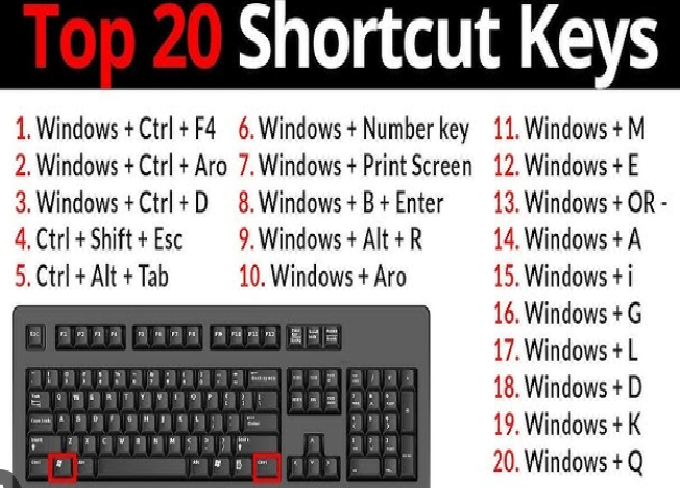
Windows is one of the most popular operating systems in the world, known for its user-friendly interface and wide range of productivity tools. However, many people don’t realize how much faster and more efficient they can be just by learning a few essential keyboard shortcuts. These shortcuts help you navigate, manage files, and control applications without reaching for the mouse—saving you time and effort.
In this article, we’ll cover 10 of the most useful Windows keyboard shortcuts that every user should know. Whether you’re a beginner or an experienced user, mastering these shortcuts will make your daily computer tasks smoother and quicker.
1. Ctrl + C and Ctrl + V – Copy and Paste Instantly
Perhaps the most well-known shortcuts in Windows, Ctrl + C (Copy) and Ctrl + V (Paste) are absolute time-savers. Instead of right-clicking and choosing “Copy” or “Paste,” these shortcuts let you perform the same action instantly.
How it works:
-
Highlight the text, file, or image you want to copy.
-
Press Ctrl + C to copy it to your clipboard.
-
Move to your desired location and press Ctrl + V to paste it.
Pro Tip: You can also use Ctrl + X to cut the selected item instead of copying it, which removes it from the original location when you paste it somewhere else.
Why it saves time:
This combination eliminates the need to use menus and mouse clicks, making file organization, text editing, and content creation much faster.
2. Alt + Tab – Switch Between Open Windows Quickly
When you have multiple applications open at once, navigating between them can become tedious. That’s where Alt + Tab comes in handy. This shortcut allows you to quickly switch between open windows without using the mouse.
How it works:
-
Hold down the Alt key and press Tab once to view a grid of all your open programs.
-
Continue holding Alt and press Tab repeatedly to cycle through your open windows.
-
Release Alt when you reach the window you want to switch to.
Pro Tip: On Windows 10 and 11, this shortcut even shows you a small preview of each window, making multitasking easier.
Why it saves time:
Instead of minimizing and maximizing windows or searching the taskbar, you can jump directly to the program you need with just a couple of keystrokes.
3. Windows + D – Show or Hide the Desktop
If your screen is cluttered with multiple windows and you want to quickly access your desktop, Windows + D is the perfect shortcut.
How it works:
-
Press Windows + D once to minimize all open windows and display your desktop.
-
Press it again to restore the windows to their original positions.
Pro Tip: This shortcut is ideal for quickly dragging files onto your desktop or accessing desktop shortcuts without closing your open programs.
Why it saves time:
Instead of minimizing each window one by one, you can instantly reveal or hide your desktop in seconds.
4. Ctrl + Shift + Esc – Open Task Manager Directly
When your computer slows down or a program freezes, most users right-click the taskbar and select “Task Manager.” However, there’s a faster way: Ctrl + Shift + Esc.
How it works:
-
Press Ctrl + Shift + Esc to instantly open the Task Manager window.
-
From here, you can view running processes, monitor performance, and end unresponsive tasks.
Pro Tip: Unlike Ctrl + Alt + Del, which brings up an intermediate menu, Ctrl + Shift + Esc takes you straight to Task Manager—perfect for emergencies.
Why it saves time:
This shortcut cuts out extra steps and lets you quickly regain control of your computer when things freeze or slow down.
5. Windows + L – Lock Your Computer Instantly
If you need to step away from your computer, it’s a good idea to lock it to protect your privacy. Windows + L is the fastest way to do that.
How it works:
-
Simply press Windows + L to immediately lock your computer.
-
You’ll be taken to the login screen where your password, PIN, or biometric authentication is required to unlock it.
Pro Tip: This shortcut is especially useful in offices or shared environments to prevent unauthorized access.
Why it saves time:
You don’t need to navigate through menus or wait for the computer to lock automatically—it happens instantly, ensuring security without wasting time.
6. Windows + E – Open File Explorer Instantly
Accessing your files is one of the most common tasks in Windows. Instead of double-clicking “This PC” or “File Explorer” from the taskbar, you can simply press Windows + E.
How it works:
-
Press Windows + E and File Explorer will open immediately.
-
It automatically opens the “Quick Access” view, showing your most-used folders and recent files.
Pro Tip: You can pin specific folders to Quick Access for even faster navigation.
Why it saves time:
No need to navigate through multiple clicks—this shortcut takes you straight to your file management hub.
7. Alt + F4 – Close Active Window or Shut Down
The Alt + F4 shortcut is one of the most powerful and widely used commands in Windows. It allows you to close the currently active program or, if no windows are open, it opens the shutdown menu.
How it works:
-
Click on any window and press Alt + F4 to close it.
-
If you’re on the desktop, pressing Alt + F4 opens a “Shut Down Windows” dialog box where you can choose to shut down, restart, or put your computer to sleep.
Pro Tip: Make sure the correct window is active before using this shortcut to avoid accidentally closing the wrong program.
Why it saves time:
Instead of moving your mouse to the top-right corner to click the “X” button, you can close apps instantly from the keyboard.
8. Windows + Tab – Access Task View
Windows 10 and 11 include a powerful feature called Task View, which allows you to see all open windows, virtual desktops, and even your activity history. The Windows + Tab shortcut is the quickest way to access it.
How it works:
-
Press Windows + Tab to open Task View.
-
You’ll see thumbnails of all your open windows.
-
You can also create new virtual desktops or switch between them.
Pro Tip: Virtual desktops are perfect for organizing work and personal tasks separately—for example, one desktop for browsing and another for productivity apps.
Why it saves time:
It simplifies multitasking, helping you manage multiple workspaces and programs efficiently without losing focus.
9. Windows + S – Quick Search for Anything
Can’t find a file or want to launch a program without searching through menus? Windows + S brings up the search bar instantly.
How it works:
-
Press Windows + S to open the Windows Search panel.
-
Type the name of a file, folder, app, or even a web query.
-
Hit Enter to open the top result.
Pro Tip: You can also search for settings, control panel items, and system tools from the same shortcut.
Why it saves time:
Instead of manually browsing through directories or menus, you can instantly locate and open anything with just a few keystrokes.
10. Windows + I – Open Settings Instantly
Windows has a central Settings hub where you can manage system preferences, devices, updates, and privacy options. Instead of navigating through the Start menu, Windows + I opens Settings directly.
How it works:
-
Press Windows + I to launch the Settings app.
-
Use the search bar within Settings to find specific options quickly.
Pro Tip: You can combine this shortcut with others—for instance, Windows + I followed by typing “Display” to adjust screen brightness or resolution in seconds.
Why it saves time:
This shortcut is especially helpful when you need to quickly access network settings, system updates, or personalization options without hunting through menus.
Bonus Shortcuts Worth Knowing
While the above ten are the most essential, here are a few bonus shortcuts that can further speed up your workflow:
-
Ctrl + Z – Undo the last action (works in almost every app).
-
Ctrl + Y – Redo the previously undone action.
-
Windows + L – Locks your PC instantly (important for privacy).
-
Windows + PrtScn – Takes a screenshot and saves it automatically.
-
Windows + Shift + S – Opens Snip & Sketch for partial screenshots.
Each of these shortcuts complements the main ones and helps create a smoother experience when working or browsing in Windows.
How Keyboard Shortcuts Boost Productivity
Using keyboard shortcuts might seem like a small adjustment, but their cumulative effect on productivity is huge. Here’s how they make a real difference in your workflow:
-
Faster Navigation:
Moving between programs or files takes seconds instead of minutes when you rely on quick key combinations. -
Reduced Mouse Dependency:
Constantly switching between the keyboard and mouse slows you down. Shortcuts keep your hands on the keyboard, maintaining flow and focus. -
Improved Accuracy:
Shortcuts reduce the chance of misclicks and accidental window closures. You can execute precise actions instantly. -
Less Physical Strain:
Overusing the mouse can cause hand and wrist fatigue. Using the keyboard more evenly distributes movement, which can be more ergonomic over time. -
Professional Efficiency:
Whether you’re a student, developer, designer, or office worker, being fluent with shortcuts makes you look—and feel—more professional and capable.
Tips for Learning and Remembering Shortcuts
If you’re new to using shortcuts, it can feel overwhelming at first. Here are a few simple techniques to help you remember them easily:
-
Start Small: Focus on learning two or three shortcuts at a time. Once they become second nature, add a few more.
-
Create Visual Reminders: Stick notes near your monitor listing your most-used shortcuts until you memorize them.
-
Use Them Daily: Consistent use helps commit them to muscle memory faster.
-
Group by Function: For example, remember that “Ctrl” shortcuts often control editing functions, while “Windows” shortcuts usually handle system-level actions.
Within a few days of practice, you’ll find yourself relying on them naturally.
Why Windows Shortcuts Evolve with Each Version
Microsoft constantly updates Windows, introducing new features and shortcuts with every release. Windows 11, for example, added improved multitasking shortcuts tied to virtual desktops, Snap Layouts, and settings.
Keeping up with these changes ensures that you’re always using your system to its full potential. For instance:
-
Windows + Z opens Snap Layouts for easy window management.
-
Windows + A opens the Quick Settings panel.
-
Windows + N shows notifications instantly.
By staying updated, you can continue to work efficiently as the Windows ecosystem evolves.
Final Thoughts
Keyboard shortcuts are small but powerful tools that dramatically enhance your efficiency in Windows. They reduce the time spent on repetitive tasks, minimize interruptions, and help you stay focused on what truly matters.
From copying and pasting (Ctrl + C / Ctrl + V) to switching windows (Alt + Tab) and locking your system (Windows + L), every shortcut on this list plays a vital role in streamlining your workflow.