
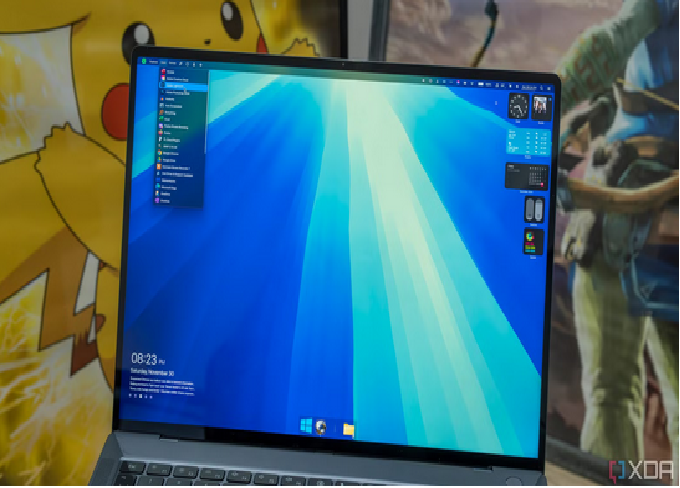
Your Windows desktop is more than just a workspace—it’s your digital home. Every time you turn on your computer, the desktop is the first thing you see. Whether you’re a creative professional, a gamer, or a casual user, customizing your desktop can make your PC feel personal, efficient, and visually stunning. In this detailed guide, we’ll explore step-by-step how to customize the look of your Windows desktop like a pro, covering everything from wallpapers and icons to advanced visual tweaks and productivity-enhancing layouts.
1. Why Customizing Your Desktop Matters
Before diving into the how-to part, it’s important to understand why customization matters. A personalized desktop:
-
Enhances productivity: Clean layouts and organized icons make it easier to find what you need quickly.
-
Reflects personality: Your desktop can mirror your taste, interests, and creativity.
-
Improves focus: Removing clutter and distractions leads to a smoother workflow.
-
Adds comfort: You spend hours staring at your screen—make it pleasing to the eye.
Customization is about blending beauty with function. With a few adjustments, you can transform the plain Windows interface into something sleek, efficient, and inspiring.
2. Start with the Right Wallpaper
The wallpaper sets the tone for your entire desktop. It’s the first step toward building a unique and cohesive look.
Choose a High-Resolution Image
Opt for a wallpaper that matches your screen’s resolution (for example, 1920×1080 for Full HD or 2560×1440 for QHD). This ensures the image looks sharp and professional. Avoid pixelated or stretched backgrounds.
Types of Wallpapers to Consider
-
Minimalist: Simple designs, soft gradients, or subtle patterns help maintain focus.
-
Abstract or Artistic: Ideal for users who want a modern, creative touch.
-
Nature and Landscapes: Soothing for the eyes and perfect for long work sessions.
-
Dynamic Wallpapers: Windows allows you to set slideshows that change automatically.
How to Set a Wallpaper
-
Right-click on your desktop and select Personalize.
-
Go to the Background section.
-
Choose between Picture, Solid color, or Slideshow.
-
Browse and set your preferred image.
Pro Tip:
You can use third-party apps like Wallpaper Engine or Lively Wallpaper to set animated or interactive wallpapers that move with your mouse or system activity.
3. Customize the Taskbar and Start Menu
The taskbar is one of the most visible elements of Windows, and tweaking it can instantly modernize your desktop’s appearance.
Change Taskbar Position and Size
You can move the taskbar to the top, left, or right side of your screen.
-
Right-click the taskbar and select Taskbar settings.
-
Under Taskbar behaviors, choose your desired position.
Adjust Icon Alignment
Windows 11 allows center or left alignment of taskbar icons. Centered icons give a macOS-style modern look, while left-aligned ones preserve the classic Windows layout.
Hide or Make Taskbar Transparent
-
Turn on Automatically hide the taskbar for a cleaner, minimal appearance.
-
For transparency, use a free tool like TranslucentTB to make the taskbar glass-like.
Customize the Start Menu
You can:
-
Pin your most-used apps.
-
Organize them into folders.
-
Change background colors in the Personalization > Colors settings.
-
Disable unnecessary “Recommended” items to reduce clutter.
4. Choose a Theme That Matches Your Style
Windows themes combine wallpapers, colors, and sounds into a unified aesthetic.
Using Built-in Themes
-
Open Settings > Personalization > Themes.
-
Choose from default Windows themes or download new ones from the Microsoft Store.
Create Your Own Theme
You can mix your own wallpaper, accent color, and cursor design:
-
Change background, sounds, and colors to your liking.
-
Click Save theme under the Themes menu.
Pro Tip:
Match your theme to the time of day — for example, light mode during the day and dark mode at night. Use tools like Auto Dark Mode to automate the switch.
5. Refine Your Icons and Shortcuts
Icons play a huge role in the visual design of your desktop. Updating them can give your system a cohesive, professional vibe.
Change Desktop Icons
-
Go to Settings > Personalization > Themes > Desktop icon settings.
-
Select the icon you want to change (e.g., Recycle Bin, This PC).
-
Click Change Icon and browse for a new one.
Use Custom Icon Packs
You can download icon packs from platforms like DeviantArt, IconArchive, or Flaticon. Choose icons that match your theme (flat, neon, minimal, vintage, etc.).
Organize Desktop Icons
-
Use folders to group similar items.
-
Align icons to grid for neat spacing.
-
Or hide icons entirely for a minimalist look (Right-click → View → Show desktop icons).
Pro Tools:
-
Rainmeter: Adds interactive widgets and system info meters.
-
RocketDock: Adds a sleek app dock similar to macOS.
6. Personalize the Color Scheme
Windows lets you customize accent colors for windows, buttons, and menus.
Change Accent Color
-
Open Settings > Personalization > Colors.
-
Enable Show accent color on Start and taskbar.
-
Choose a custom color or let Windows automatically match your wallpaper.
Dark vs Light Mode
-
Dark mode: Ideal for working at night, reduces eye strain, and gives a modern appearance.
-
Light mode: Feels open, airy, and is great for daytime productivity.
Switch between modes depending on your environment or preference.
Pro Tip:
Combine dark mode with vibrant accent colors like electric blue or crimson for a stylish tech aesthetic.
7. Customize Fonts and Text Appearance
Fonts play a subtle but powerful role in personalization. Changing system fonts can completely alter your desktop’s mood.
Adjust System Font Size
Go to Settings > Accessibility > Text size and adjust it for better readability.
Use Custom Fonts (Advanced Users)
You can tweak fonts via registry edits or third-party tools like Winaero Tweaker. Choose modern, clean fonts such as Segoe UI Variable, Roboto, or Open Sans for a sleek look.
8. Tweak File Explorer for a Clean Look
File Explorer is where you spend a lot of time, so optimizing it enhances your experience.
Enable Compact View
Makes file lists tighter and more space-efficient.
Hide the Navigation Pane
Go to View > Navigation Pane to toggle it off for a minimalist interface.
Change Folder Icons
Right-click any folder → Properties > Customize > Change Icon. You can assign different icons for work, entertainment, or documents.
Dark Mode in File Explorer
Enable dark mode in Settings > Personalization > Colors, and File Explorer will adapt automatically.
9. Use Widgets and Desktop Gadgets
Windows 11 reintroduced Widgets, which provide quick access to news, weather, calendar, and more.
How to Use Widgets
-
Click the Widgets button on the taskbar or press Win + W.
-
Customize which widgets appear and how they are arranged.
Add Third-Party Widgets
If you want more advanced customization, tools like Rainmeter let you add custom clocks, weather panels, CPU monitors, and even music visualizers directly to your desktop.
Pro Tip:
Match your widgets to your wallpaper’s theme for a professional and cohesive look.
10. Use Virtual Desktops for a Clean Workflow
A cluttered desktop can make even a beautiful theme look messy. Virtual desktops help separate work, entertainment, and personal tasks.
How to Create Virtual Desktops
-
Press Win + Tab → Click New desktop.
-
You can rename desktops (e.g., Work, Games, Study).
Each desktop can have its own open windows and apps, keeping your environment organized and distraction-free.
11. Add Live Wallpapers and Visual Effects
Static backgrounds are fine, but live wallpapers add a modern, dynamic feel.
Using Wallpaper Engine
This Steam app lets you set animated, interactive, or video wallpapers that respond to music or cursor movement.
Using Lively Wallpaper (Free)
An open-source alternative that supports YouTube videos, GIFs, and real-time effects.
Performance Tip:
Animated wallpapers use GPU resources—disable them while gaming to save performance.
12. Customize Your Mouse Cursor
A small detail, but an effective one. A unique cursor design can complement your overall theme.
Change Cursor Style
-
Open Settings > Bluetooth & Devices > Mouse > Additional mouse settings.
-
In the Pointers tab, choose a different scheme.
Use Custom Cursor Packs
Download cursor themes (for example, Windows Aero Black, Minimal White, MacOS-style cursors).
13. Enhance the Lock Screen
The lock screen is the first thing you see when starting up. Make it beautiful too.
Change Background
-
Go to Settings > Personalization > Lock screen.
-
Choose Picture or Slideshow mode.
Add Information
You can display your calendar, mail, or weather on the lock screen for quick glances.
14. Sound Customization
Don’t ignore audio! Custom system sounds add polish to your desktop setup.
How to Change System Sounds
-
Open Control Panel > Sound > Sounds tab.
-
Choose a sound scheme or import your own audio clips.
A futuristic “startup sound” or minimal “notification tone” can elevate your PC’s personality.
15. Advanced Customization with Third-Party Tools
For power users who want to go beyond the default options, there are advanced apps to completely redesign the interface.
Top Tools to Try
-
Rainmeter: Add live widgets, system info, and visual skins.
-
Stardock WindowBlinds: Change window frames, title bars, and control buttons.
-
StartAllBack: Restore or modify the Start Menu and taskbar with elegant themes.
-
Fences: Organize desktop icons into labeled groups.
-
TranslucentTB: Create transparent or blurred taskbars.
Pro Tip:
Always back up your settings before using these apps—some can deeply modify system files.
16. Clean and Maintain Your Setup
No matter how beautiful your desktop looks, clutter can ruin it.
Tips for a Clean Look
-
Delete unused shortcuts regularly.
-
Keep files in organized folders.
-
Use Fences to hide icons when not needed.
-
Set weekly reminders to tidy up your desktop.
A clean setup not only looks professional but also improves performance and focus.
17. Sync Your Setup Across Devices
If you use multiple Windows devices, you can sync your theme and personalization settings for consistency.
How to Enable Sync
-
Go to Settings > Accounts > Sync your settings.
-
Turn on Theme, Passwords, and Language preferences.
This keeps your customized look uniform across all PCs linked to your Microsoft account.
18. Balance Aesthetics with Performance
Customization is fun, but too many effects can slow down your system.
Tips to Keep Performance Smooth
-
Disable unnecessary startup apps.
-
Limit live wallpapers or animated widgets.
-
Turn off transparency effects (Settings → Accessibility → Visual Effects).
-
Keep your GPU drivers updated.
The goal is a setup that’s both beautiful and efficient.
19. Inspiration: Popular Aesthetic Styles
Here are some desktop style ideas to inspire your next setup:
-
Minimalist Black & White: Clean, distraction-free workspace.
-
Cyberpunk Neon: Futuristic glow with dark backgrounds and glowing blue/purple accents.
-
Nature Retreat: Soft greens, wooden textures, and forest wallpapers.
-
MacOS-Inspired: Centered dock, blurred transparency, and simple icons.
-
Gaming Setup: RGB-inspired visuals, live wallpapers, and bold color schemes.
20. Final Thoughts: Make It Yours
Customizing your Windows desktop like a pro is about creating a balance between form and function. It’s not just about aesthetics—it’s about shaping an environment that enhances your daily experience.
Start simple: change your wallpaper, adjust colors, and reorganize icons. Then, as you get more comfortable, dive into advanced tools like Rainmeter and Stardock for deeper personalization.
Your desktop should be more than just a blank screen; it should inspire you every time you turn on your computer. When designed thoughtfully, it becomes a reflection of your identity, your mood, and your goals.